
Create a Harvestable Resource
Build a tree that drops wood when a player interacts with it.
Video Walkthrough
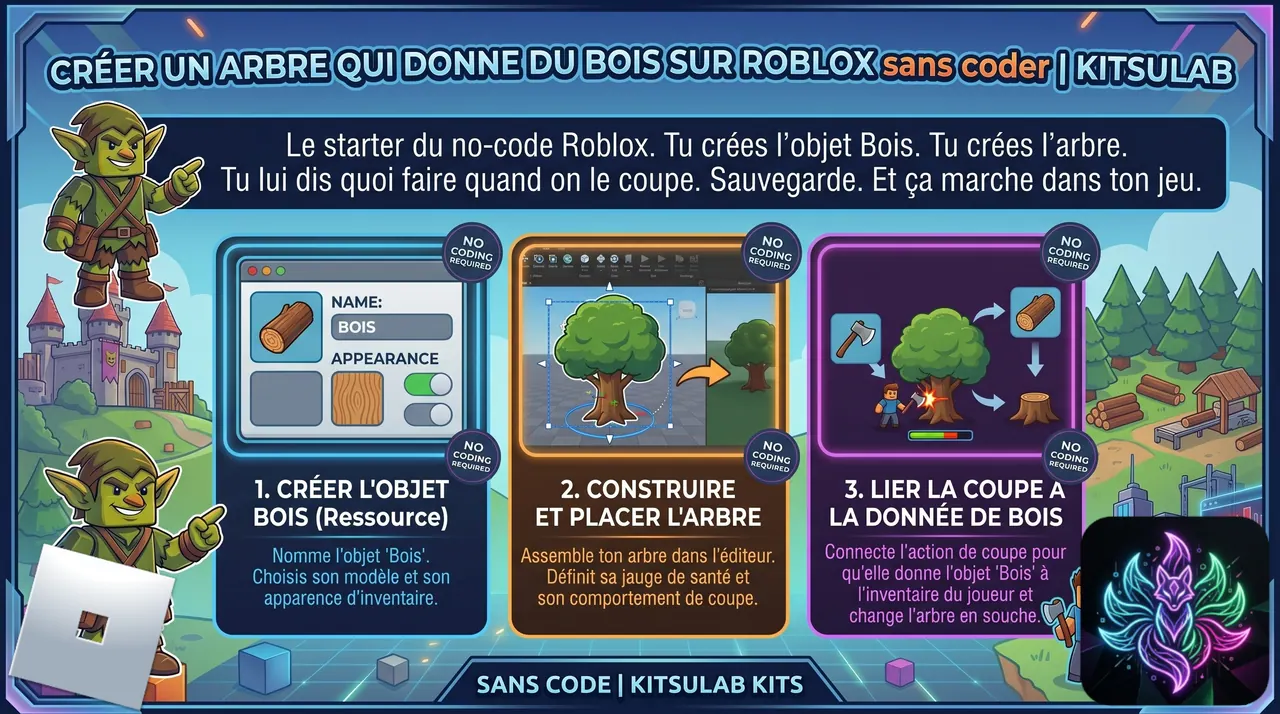
 Step-by-step Guide
Create the resource item (Wood)
In the CMS, create a new item called 'Wood' with category 'Collectible'. This is the resource the player will accumulate in their inventory.
Create the world item (Tree)
Create a second item 'Tree' with category 'None'. It's just an object that lives in the world — no special category needed.
Add the OnSpawn entry point and Interact
On the Tree item, open the Behavior tab. Add an 'OnSpawn' entry point, then chain an Interact action with the label 'Harvest'. The player will see this prompt when standing close to the tree.
Chain PlayAnimation and ModifyItem
After Interact, add a PlayAnimation action (e.g. a 'Shake' animation on the tree), then a ModifyItem action with mode Add, itemId 'Wood' and quantity 1. The chain becomes: OnSpawn → Interact('Harvest') → PlayAnimation → ModifyItem(Add Wood).
Link the 3D models in the plugin
Open the Kitsulab plugin in Roblox Studio, go to the Linker tab, and drag the 'Tree' Roblox model onto the Tree item line. Do the same for 'Wood'. Both badges turn green.
Test in Play mode
Press Play in Studio. Approach the tree, the 'Harvest' prompt appears, press E. The tree shakes and a wood log appears in your inventory.

 Interaction
  Play an animation
  Modify inventory